 Verso
Werkbank
A browser that shows its work.
Verso has a Develop menu, off until you want it. Turn it on and the window gets a palette of viewports and page switches, Web Vitals on the page's corner, WebKit's Web Inspector docked under the page, and the source and JSON of whatever you load.


- Develop
- Viewport
- Drag handles
- Web Vitals
Palette
Every size, without a device.
The toolbar's Develop button opens one palette. Pick a viewport and the page lays out at that size inside the sheet, scaled down when the window is smaller; drag its edges for a size of your own. Appearance turns the page light or dark without a reload.
- Window width
- the sheet's own size
- Custom
- any size, or drag the edges


Page switches
- Outline layout Every box outlined, from a style sheet the page's own CSP does not govern.
- No images Images never fetched, so the page lays out as it does when they fail, alt text and all.
- No styles The page's style sheets off, and back as they were when you switch it off.
- No JavaScript For this tab only, and it stays off while the tab sleeps.
Messung
Web Vitals, on the page's corner.
Switch on Web Vitals and a card sits on the sheet's corner, outside the page's DOM, counting since the last load. Each value is rated as web.dev rates it.
| Metric | Good | Poor |
|---|---|---|
| lcp Largest Contentful Paint | Good up to 2.5 s | Poor over 4 s |
| inp Interaction to Next Paint | Good up to 200 ms | Poor over 500 ms |
| ttfb Time to First Byte | Good up to 800 ms | Poor over 1,800 ms |
Cumulative Layout Shift is missing on purpose: this macOS's WebKit does not report layout shifts, and the card shows only what it can measure. It appears once WebKit reports them.


Inspektor
The Web Inspector, in the window.
⌥⌘I opens WebKit's own Web Inspector, docked under the page inside its sheet; its buttons put it beside the page or in a window of its own. Inspect Element joins the page's context menu, and the Develop menu opens the console, the resources or element selection directly.
- ⌥⌘I
- Inspect Element
- Show JavaScript Console
- Show Page Resources
- Start Element Selection


Quelltext
The source as it stands. JSON you can read.
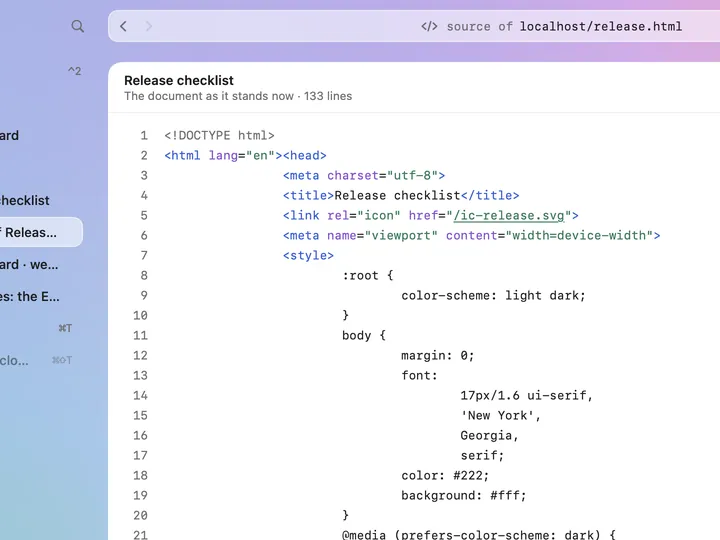
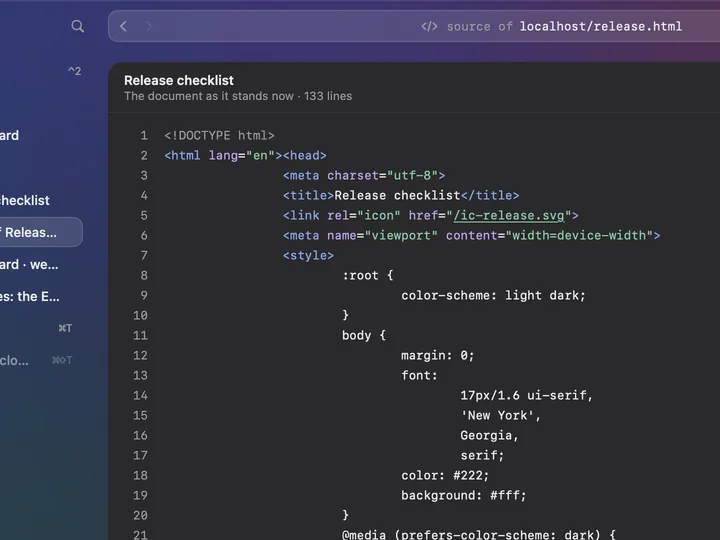
View Source ⌥⌘U opens the page's source in a tab of its own: the document as it stands now, not only as it first arrived. 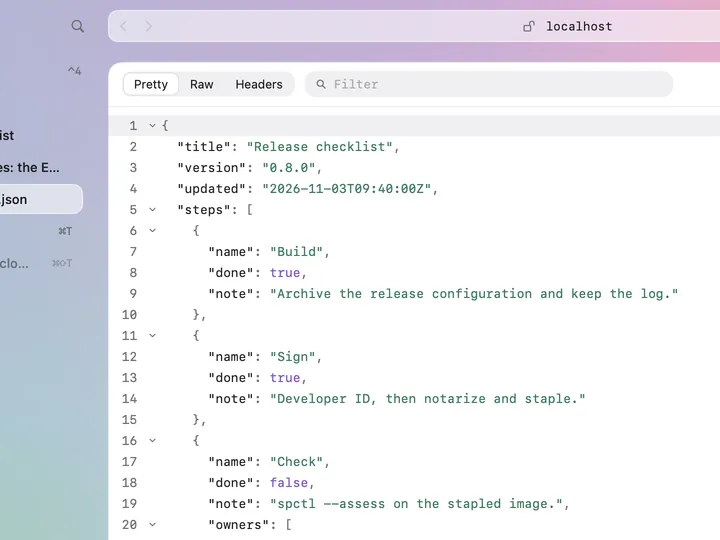
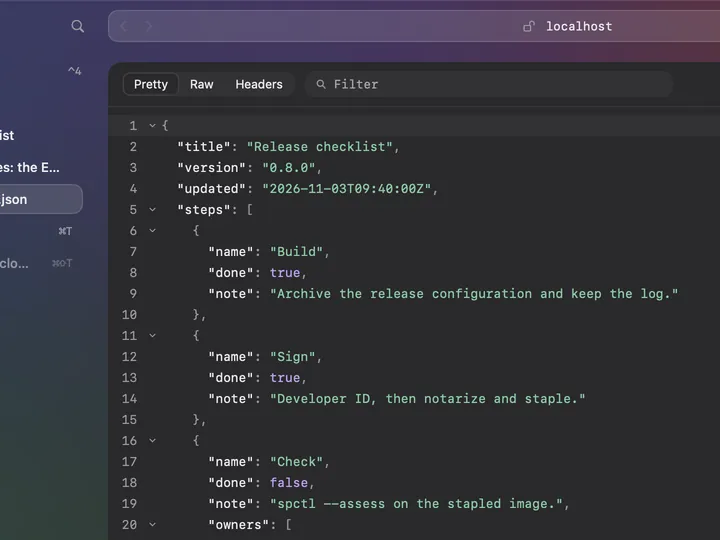
JSON you can read A JSON response opens in a viewer: Pretty with folding, Raw, and the response's Headers, with a filter and the path to what you pick.


Werkzeugkasten
And the small things.
-
User Agent
Tell a tab's pages it is Chrome, Firefox or Edge on macOS, from its next load.
-
No JavaScript
Off for one tab, with a reload; every other tab keeps it.
-
Empty Caches
The Space's disk, memory and Fetch caches go; cookies and storage stay.
-
Reload Ignoring Cache
⇧⌘R loads the page again from its server.
-
Copy as Markdown
From the context menu: the page's address as a Markdown link, a selection as Markdown.
-
Keys that stay yours
⌥⌘I and ⌥⌘U reach Verso on every page; the other Develop commands take no key a page might want.
Werkstoff
The engine your Safari users have.
Verso renders with the WebKit of your Mac, the framework Safari is built on. What you check here is what Safari users get, without leaving the browser you work in.
- Engine
- WebKit
- Inspector
- Web Inspector
- Off until
- Settings → Developer
Schalter
Off until you turn it on.
None of this is there by default, and no page can be inspected until you switch it on.
- 01 Open Settings
- 02 Choose Developer in the list
- 03 Switch on Show Develop menu
Bring your own pages.
Download the alpha, turn on Developer in Settings, and open what you are building.
Free. macOS 26 or later on Apple silicon.